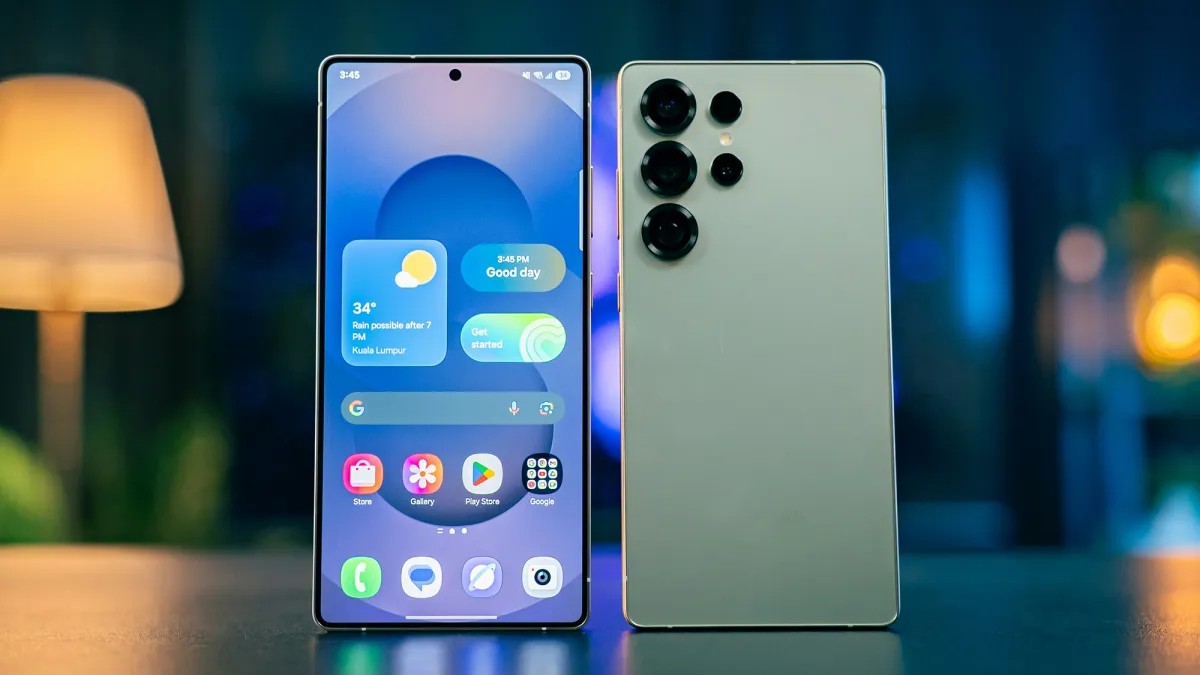
It is an inevitable cycle: every smartphone, no matter how powerful at launch, will eventually begin to slow down. This decline in performance is often caused by software bloat, cluttered storage, and background processes that gradually consume the device’s resources.
While the ultimate reason to upgrade is often security—specifically when a device stops receiving critical software updates—you can significantly delay the need for a new purchase by optimizing your current device. Here is how to refresh your phone and reclaim its speed.
1. Declutter Your App Ecosystem
A cluttered app library is one of the primary culprits behind a sluggish interface. Every installed app takes up space, and many more run silently in the background, draining both battery and processing power.
Audit and Uninstall
Perform a digital audit of your device. If you haven’t used an app in months, delete it. You can always reinstall it later or access the service via a web browser.
– On Android: Long-press an app icon and drag it to the Uninstall button.
– On iOS: Long-press the icon in the App Library and select Delete App.
Control Background Activity
Even if you aren’t actively using an app, it may be working in the background. Limiting this “background refresh” can provide an immediate boost to responsiveness.
– Android: Navigate to Settings > Apps > See all apps. Select a specific app, tap App battery usage, and toggle off Allow background usage.
– iOS: Go to Settings > General > Background App Refresh to toggle off specific apps that don’t need to stay active.
2. Optimize Storage Capacity
A smartphone requires “breathing room” in its internal storage to function efficiently. When storage nears capacity, the operating system struggles to manage temporary files, leading to lag and crashes.
Freeing Up Space
- Android: Use the built-in Files app. Tap the menu icon and select Clean to find suggestions for deleting duplicates, old screenshots, and oversized files.
- iOS: Navigate to
Settings > General > iPhone Storage. This provides a detailed breakdown of your usage and offers intelligent suggestions, such as offloading large files to the cloud. - Samsung Galaxy Users: You can reclaim storage by managing RAM Plus. Go to
Settings > Device care > Memory > RAM Plusto disable this feature, which converts storage space into virtual memory.
3. The “Nuclear Option”: Performing a Factory Reset
If optimization steps fail to resolve your performance issues, a full factory reset is the most effective remedy. This process wipes the device clean, returning it to the “out-of-the-box” state by removing all residual system junk and fragmented data.
⚠️ Critical Warning: A factory reset erases everything. Before proceeding, you must ensure all essential data—photos, videos, contacts, and documents—is backed up to a cloud service like Google Drive or iCloud.
How to Reset
- Android: Go to
Settings > System > Reset options > Erase all data (factory reset). - iOS: Go to
Settings > Transfer or Reset iPhone > Erase All Content and Settings.
Summary: By aggressively managing your apps, clearing storage, or performing a complete factory reset, you can bypass the urge to upgrade and maximize the functional life of your current smartphone.